
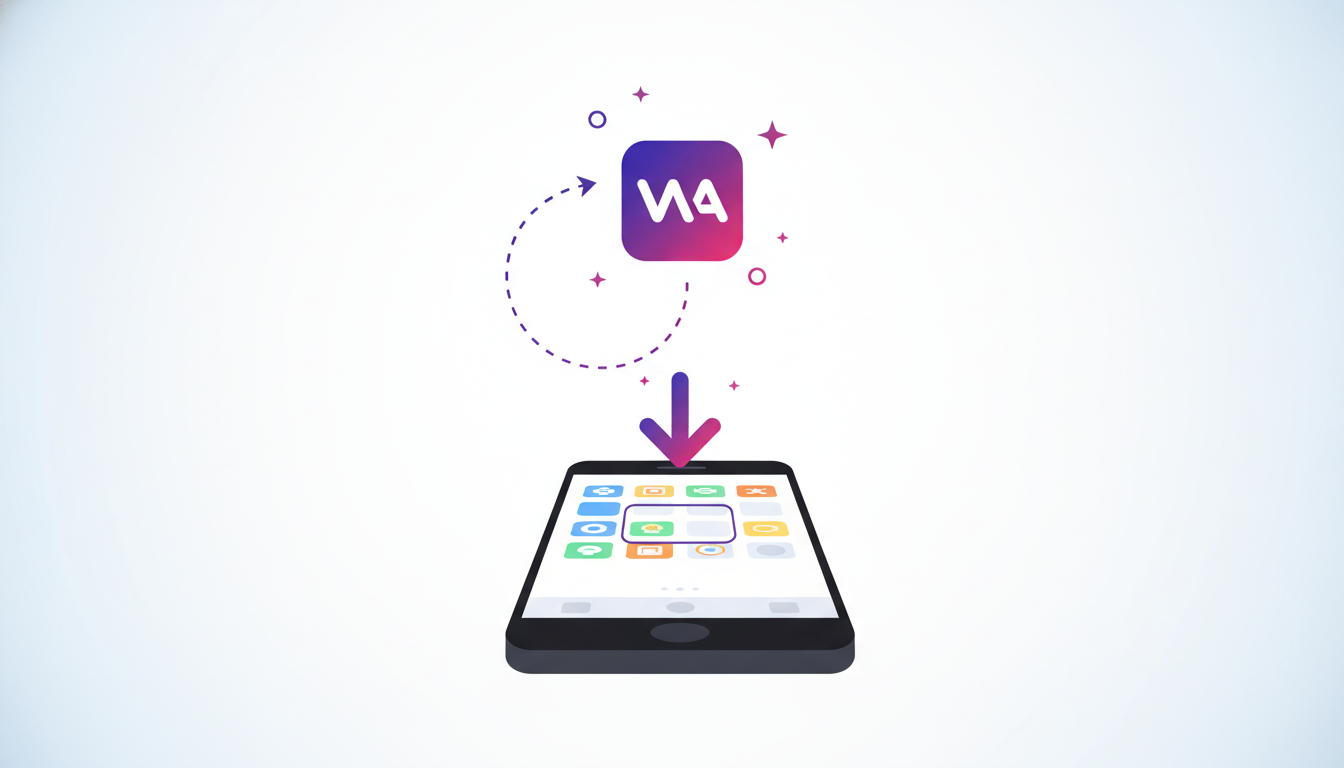
How your web app becomes an icon on the phone (PWA)
No Google Play, no App Store, no APK. We explain what a PWA is and how users install your app in 2 taps.
To turn your app into an icon on a phone, you do NOT need Google Play or the App Store, no APK, no $25 developer account. There's a simpler path called a PWA — and every app built on nocodeon already has it.
What a PWA is, plainly
A PWA (Progressive Web App) is an ordinary web page that can be installed like an app: it gets its own icon on the screen, opens full-screen (no browser address bar), and works offline for things already loaded. To the user it looks and behaves like a real app.
Why it's better than APK / Google Play
| Google Play (APK) | PWA | |
|---|---|---|
| Cost | $25 one-time + review | Free |
| Time to publish | Days (waiting for approval) | Instant |
| Updates | New upload, new review | Just save — everyone gets the new version |
| iPhone and Android | Two separate submissions | One, works on both |
How a user installs (Android, Chrome)
- Open the app full-screen (the link you shared).
- An “📲 Install” button appears — or menu ⋮ → “Install app”.
- Confirm. The icon appears on the home screen like a real app.
How a user installs (iPhone, Safari)
Apple offers no automatic button — that's their limitation, not a bug. The user taps Share (□↑) → “Add to Home Screen”. The icon appears on the screen. Worth mentioning to users, since many don't know.
What you need to do
Nothing special — every published nocodeon app is installable out of the box (it has a manifest, an icon, and runs full-screen). Your job is just to tell users they can install it: add a line like “Add me to your home screen” to your page or description. A small nudge, a big difference in how often people come back.